

Available on Enterprise plans only. Requires:
- Gateway version 2.2.4 or higher
- Backend version 1.12.0 or higher (for air-gapped deployments).
Supported Secret Managers
How It Works
Secret references use a split architecture between Portkey’s control plane and data plane:- You create a secret reference in Portkey via the API. The control plane stores only the reference configuration (manager type, secret path, auth config) — never the actual secret value.
- At runtime, the data plane (AI Gateway) reads the reference configuration and fetches the secret directly from your external manager.
- The control plane never fetches or sees the final secret. The data plane caches the fetched secret value for 5 minutes to avoid hitting your secret manager on every request. After the TTL expires, the next request triggers a fresh fetch.
Creating a Secret Reference
From the Control Panel
- From your admin panel, go to Secret References and click Create.
- Configure the reference identity:
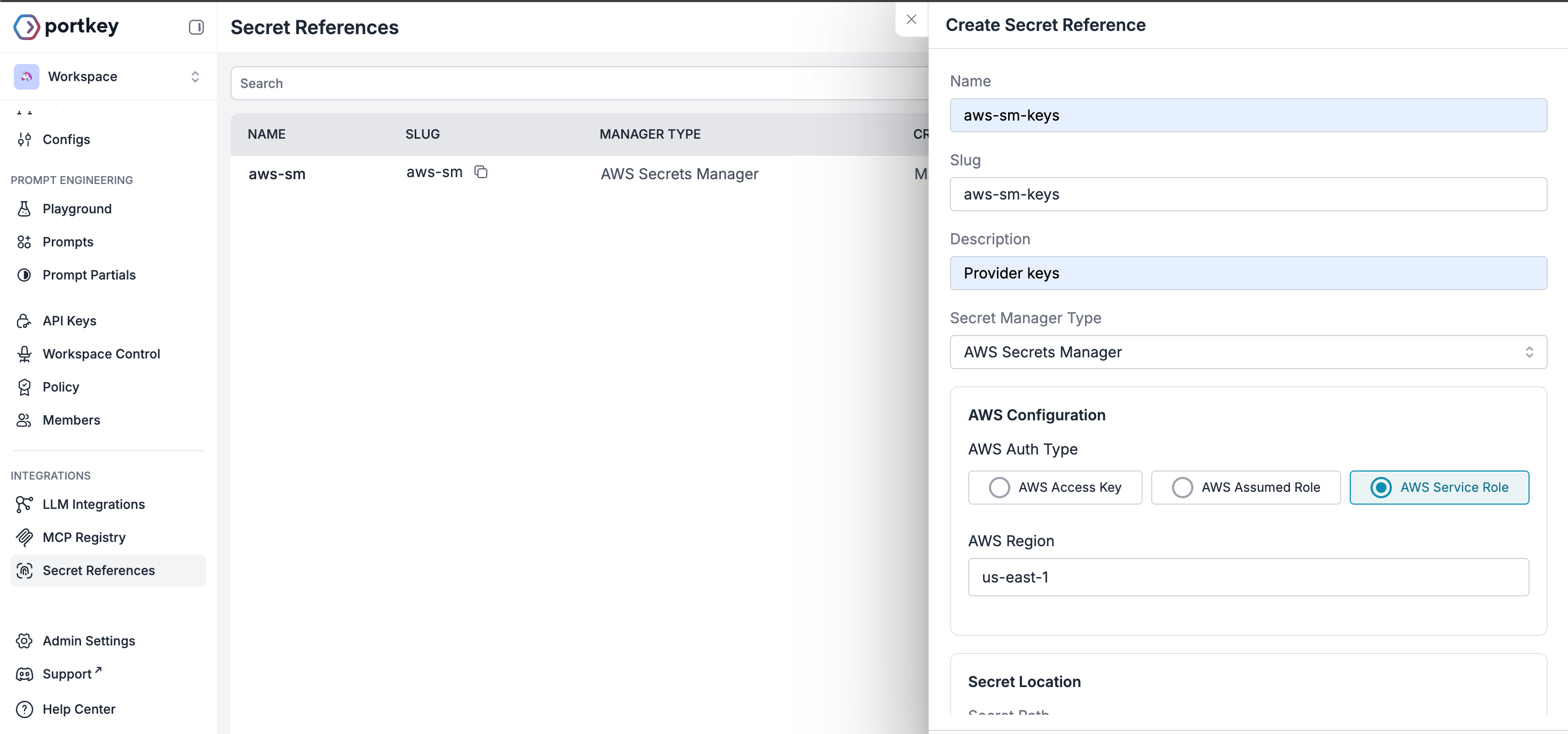
- Name: A name for this reference
- Slug: Unique identifier, auto-generated from name if not added. Pattern:
^[a-zA-Z0-9_-]+$ - Description: Optional context about this reference’s purpose
-
Choose your external vault from the supported options:
- AWS Secrets Manager
- Azure Key Vault
- HashiCorp Vault
- Select the authentication type for your chosen manager and add the required details.
-
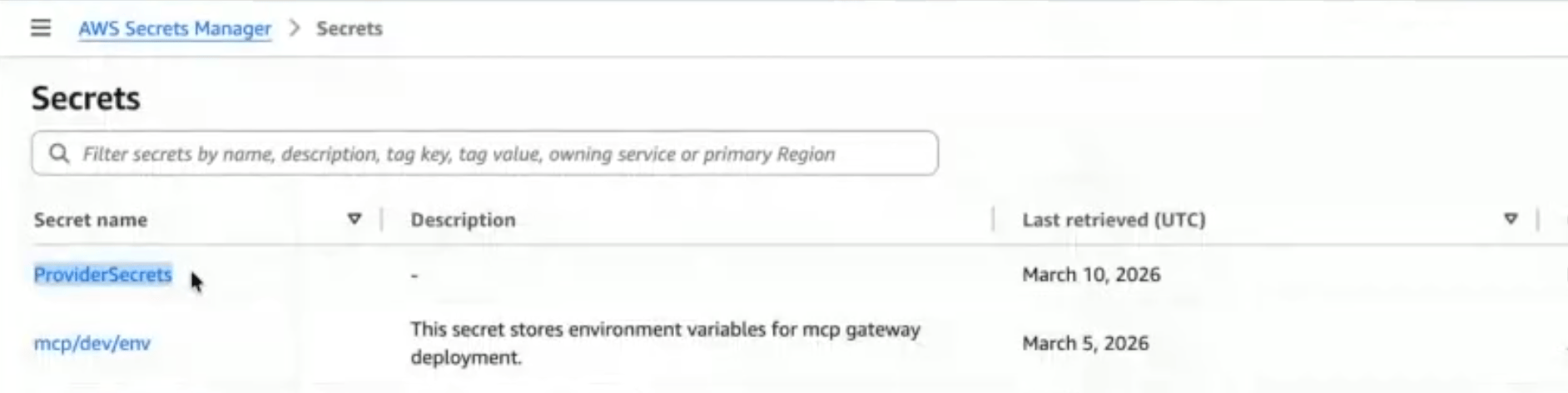
Secret Location:
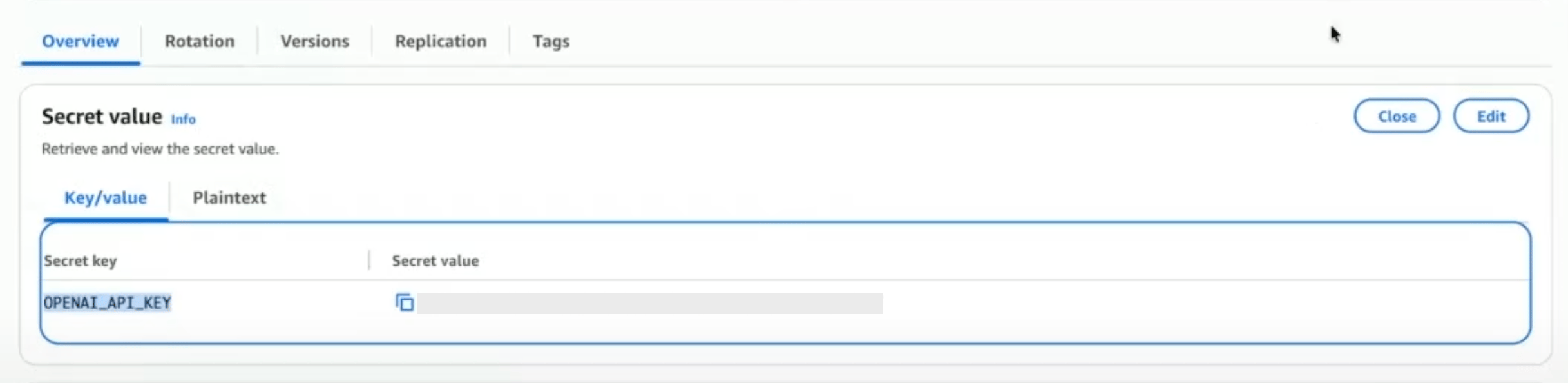
- Secret Path: Add the Secret name from the external manager
- Secret Key (optional): Add the specific key within the secret
Via Admin APIs
Send aPOST request to /v1/secret-references with the following body:
Updating a Secret Reference
Send aPUT request to /v1/secret-references/:id with only the fields you want to change. At least one field must be provided.
auth_config updates are merged with the existing config - you don’t need to resend the full object.
Setting allow_all_workspaces: true purges any workspace-specific mappings. Providing allowed_workspaces automatically sets allow_all_workspaces to false.
Deleting a Secret Reference
Send aDELETE request to /v1/secret-references/:id.
It will fail if the secret reference is currently in use by any integrations - remove those associations first.
Workspace Scoping
By default, a secret reference is accessible from all workspaces in your organisation. To restrict access:- Pass
allowed_workspaceswith an array of workspace UUIDs or slugs when creating or updating the reference. - This automatically disables
allow_all_workspaces.
allow_all_workspaces: true - this purges all workspace-specific mappings.
Auth Config
Theauth_config schema depends on the manager_type you choose.
- AWS Secrets Manager
- Azure Key Vault
- HashiCorp Vault
Secret Mappings
Secret mappings allow integrations to dynamically resolve secrets from secret references at runtime, instead of storing credentials directly. Thesecret_mappings field is an optional JSON array accepted on create and update in Integrations.
Schema
Each entry in thesecret_mappings array:
From the Control Panel
If you’re storing provider API keys in your vault, map your secrets in LLM Integrations:- While creating a new LLM integration (or editing an existing one), you’ll see a toggle. Switch to Secret Ref to use the key via your vault.
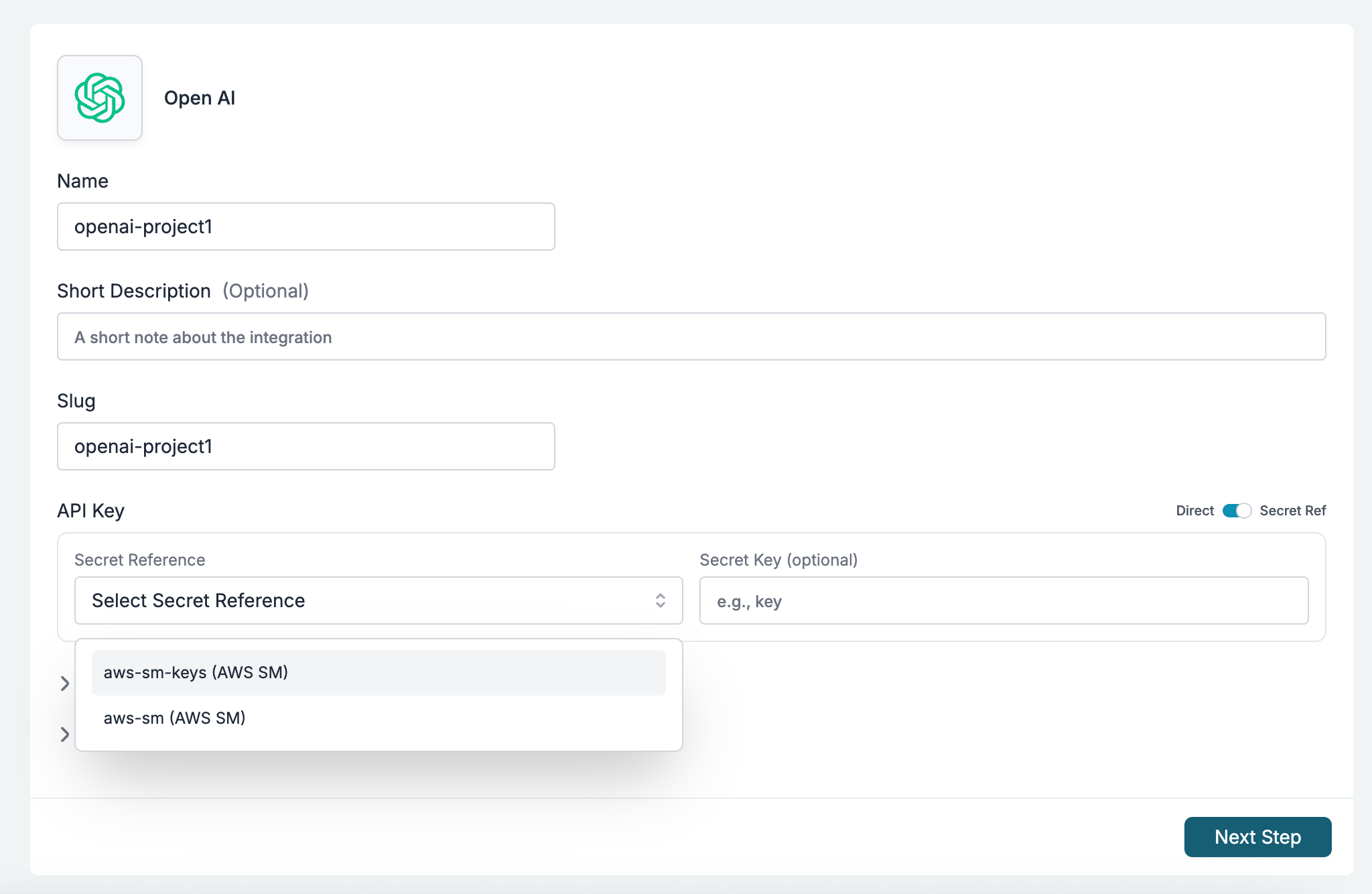
- Select the secret reference. Optionally, provide a Secret Key if the reference contains multiple values.
Via Admin APIs
Valid target_field Values
- LLM Integrations
- MCP Integrations
Integrations (
POST /v1/integrations, PUT /v1/integrations/:integrationId)Example
Using value_format: json
When your secret value is a JSON object (not a plain string), use value_format: "json" to have Portkey parse the value as JSON before injecting it into the configuration.
Example: Storing OAuth Metadata for GitHub MCP
This walkthrough shows how to store GitHub OAuth credentials in AWS Secrets Manager and reference them in Portkey for an MCP integration.1. Store the secret in AWS Secrets Manager
In your AWS Secrets Manager console (or via CLI), create a secret with:- Secret name (path):
portkey/mcp/github-oauth - Secret key:
oauth_metadata - Secret value: Store the OAuth metadata as a native JSON object — no need to stringify it.
2. Create a secret reference in Portkey
In the Portkey dashboard, go to Secret References and click Create:- Name:
my-github-oauth - Secret Manager: Select AWS Secrets Manager (or Azure Key Vault / HashiCorp Vault, depending on where you stored the secret)
- Authentication: Provide the credentials for your chosen manager
- Secret Location:
- Secret Path:
portkey/mcp/github-oauth - Secret Key:
oauth_metadata
- Secret Path:
serviceRole auth type, where Portkey authenticates using its own service role — your secret’s resource policy must grant Portkey access. When you retrieve a secret reference via the API, any sensitive auth_config fields are automatically masked.
3. Use the secret reference in your MCP integration
When creating or updating the GitHub MCP integration, mapoauth_metadata to your secret reference:
Example: Storing External Auth Config for MCP
This example shows how to store OAuth/OIDC provider configuration (e.g., Okta) for external authentication in your MCP integrations.1. Store the external auth config in your vault
In AWS Secrets Manager (or your preferred vault), create a secret with:- Secret name:
portkey/mcp/okta-auth - Secret key:
external_auth_config - Secret value: Store the OAuth configuration as a JSON object:
2. Create a secret reference in Portkey
3. Use the secret reference in your MCP integration
Example: Storing JWT Validation Config for MCP
For MCP servers that use JWT validation with an external IdP, you can store the validation configuration in your vault.1. Store the JWT validation config in your vault
- Secret name:
portkey/mcp/jwt-validation - Secret key:
jwt_validation - Secret value:
2. Create a secret reference in Portkey
3. Use the secret reference in your MCP integration
Example: Combining External Auth and JWT Validation
For complete external OAuth setups, you may need bothexternal_auth_config (for OAuth flow) and jwt_validation (for token verification):
- Uses
external_auth_configto configure the OAuth endpoints and credentials for user authentication - Uses
jwt_validationto validate incoming tokens against your IdP’s JWKS
Validation Rules
secret_mappingsmust be an array (if provided).- Each
target_fieldmust be one of the allowed fields/prefixes for the entity type. - No duplicate
target_fieldvalues within the array. - Each
secret_reference_idmust reference an existing, active secret reference in the same organisation. - If the entity is workspace-scoped, the secret reference must be accessible to that workspace (either
allow_all_workspaces: trueor explicitly mapped). - On create,
target_fieldvalues with theconfigurations.prefix are auto-normalized — you can pass just the field name without the prefix and it will be prepended.
Behavior
- At gateway runtime, mapped fields are resolved from the external secret manager using the referenced secret reference’s
auth_config,secret_path, and the mapping’ssecret_key(or the secret reference’s defaultsecret_key). - When a
target_fieldofkeyis mapped, thekeyfield on the entity becomes optional during creation. - Secret mappings are returned in GET responses for integrations.
Sensitive Field Masking
When you retrieve a secret reference via the API, sensitiveauth_config fields are automatically masked. The original field is replaced with a masked_ prefixed version containing a truncated value.
Access Requirements
- Authentication:
x-portkey-api-keyheader. - RBAC Role:
OWNERorADMIN.